Walking, Talking NPCs in Unity

Crowd Pic

Summary

Web Build

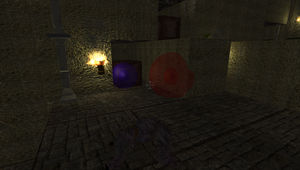
For one of the projects at the Georgia Tech Research Institute, I needed to create a system to simulate NPCs walking around. To get this result I used the following libraries.

I would highly suggest downloading the Custom Inspector for Path from yuno117 on the forums (link). I didn’t use it in this demo, but when it came time to implement this system in our final project, the custom inspector was almost a necessity since we had well over 30 path nodes.

Lets break down what each one of these libraries controls:

Unity Dialogue Engine

This was used mainly to handle the scripts for each NPC (text data). The audio was handled by my own Audio Manager and calls were made to it within our extension of the Dialogue Engine class. With UDE you can only have one conversation at a time, and while that sounds like a limitation, you can have multiple actors per conversation so it’s debatable whether that’s really a problem. Overall this is a great piece of software. The syntax however is a bit ridiculous. Data needs to be separated by tab spaces and it can get somewhat confusing on what’s actually a tab and what is a space. It’s just not very user friendly in that sense. If anything, I would much prefer an XML format.

Path

This handles all our path nodes and finding a path from the NPC’s current position to the target vector. Note that it uses a global Resources class and this conflicts directly with Unity’s so you will have to be specific on which namespace you are referring to. Path gives you an array of waypoints and you use that to traverse the path. Note that it’s not perfect. It will always try to build a path using the closest waypoint, even if its in the opposite direction of where you want to go. This can lead to unrealistic behavior where the NPC doesn’t always take the shortest path. You just need to be aware of it and account for it.

Unity Steer

This cool piece of software turns our NPC in to a vehicle. Steer then moves that vehicle to a target vector, in this case a waypoint we get using Path. It uses components extremely well. I can add a radar component so it can find obstacles, then add a component for it to avoid those obstacles. The vehicle can also avoid other vehicles, i.e. other NPCs. This is how the NPCs avoid each other, the player, and the purple spheres in the demo. Steer is overall really great. One thing to look out for is that Steer may want to move the vehicle when you don’t want to. It has it’s own calculations for figuring out if it has arrived at its destination and if you want to use your own, you have to control when the vehicle can move. Also, sometimes the vehicle wont move because it hasn’t been given enough force. You could just crank up the speeds, but I found this caused some bouncy turning behavior when the vehicle is trying to avoid stuff. Instead, what I did was just momentarily bump up the force if the vehicle wouldn’t move when it’s suppose to, then just put it back to default. Oh yes, and one last thing – all of the vehicle’s behaviors are weighted. It’s not a perfect. It will prioritize whatever behavior has the most weight. So for example, the vehicle might hit an obstacle it suppose to avoid because avoiding me had a higher weight, even if there is space between myself and the obstacle.

Behave

Behave is an implementation of Behavior trees for Unity. I’ve learned a lot about them over the course of this project and there is definitely a learning curve. Almost every example out there seems so perfect for behavior trees, but I found that when I wanted to implement my own, I ran in to trouble. Still, there is no denying how powerful behavior trees can be. One of the harder things to do in behavior trees is handling on going condition checks for interrupting the normal flow of the tree. It’s pretty easy to check initial conditions at the start of a sequence, but checking them every tick of the tree is something else.  Examples are – Did I take damage? Is the player trying to talk to me? Is my health low? Any of those events could happen while you are in an entirely unrelated branch of the tree. How do I stop execution of that branch so I can re-evaluate what I should be doing? I found that decorators were the best way to handle this with Behave. The main thing to know is that inverting a decorator only inverts what is returned on a failure. A success still ticks the child and a failure still aborts ticking the child. The only difference is a normal failure returns success and an inverted one returns failure. This is important depending on what you have as the parent of your decorator. Success for a selector means it does not continue to other children, where as success for a sequence does continue to the next child. If you are new to behave, I’d suggest checking out aigamedev.com for theory and arges systems (Unity Steer) for tree examples with Behave. These both helped me a lot.

Head Look Controller

This is a nice little script. I made the player camera the target and just switched the component on and off depending on whether or not the player was talking to the NPC. Defining which bones it would affect was bit of guess and check.

Animation Map

This was something I made that I thought I should mention. Usually, if you want to edit animation speeds and layering, you have to do it in your scripts during runtime with the animation states. What I did was create a class that allowed me to define the animations and all their state properties ahead of time in the inspector. This was really nice for layering and mixing transformations so NPCs could play multiple animations at the same time. What made this really awesome was turning these animation maps in to prefabs. Then, I could have one prefab for all my male NPCs and one for all my females, that way I could just change the clip in the prefab and it would change for all my NPCs in the scene. One thing to note: for some strange reason I could not change the animation states during the Awake of my script. I had to wait until the Start before my changes would affect the animation component. This may have something to with how the Animation component is initialized in the background. I’m not all that sure, but just wanted to give a heads up.

Guide: Audio and Unity

Intro

On August 23rd I gave a presentation on audio within the Unity Engine. I feel that while that event was a great start and the perfect opportunity to get questions answered face to face, this follow up will be much more structured and in my opinion a better source of information overall.

The first thing you will need is Unity 3.4 (note that older versions will be ok, they just might behave differently in some areas)
The next thing you will need is the Project.

This project encompasses almost everything you would want to do with audio. There are two ways you can approach learning this material. Doing both would be optimal.

1) Look at the source. It is saturated with comments.
2) Follow this guide. I will walk you through the various nuances of audio in Unity and explain why things behave as they do.

Note that this covers using the PC and Mac Standalone player and has not been tested under any other build setting.

The Project

The first thing you will need to do is unzip the project file and put it somewhere. Once you have done that, start Unity and immediately hold ALT. This will open the Unity Project Wizard. Click Open Other on the bottom left and select the project folder (should be the Audio System Tester folder in the location where you unzipped the project).

Firstly, look at the Hierarchy Tab. It has the default Main Camera with an Audio Listener. You can only have one Audio Listener, but it does not need to reside on your main camera. For instance, if you were making a first person shooter, your Audio Listener would likely be attached to the player (usually the camera). The Hierarchy also has an empty gameobject with one script component attached to it. If you click on the AudioTester object, you will see a custom inspector driven by Assets/Editor/AudioTesterGUI.cs. This guide does not cover customizing the editor, but you might gain some insights by studying this file.

Look at the Project Tab. You will notice four sound files in the Random/Resources/Sounds directory. To understand the significance of this setup, we have to cover Resources, but we will get in to that in a second. Loading audio files from the hard drive is extremely fast, even when using large files (80mb+). Loading files from a web server is a completely different story, hence why these same files exist on this website in the unity/audiotester folder. If you look at the File Info section in the Inspector, those settings should be more clear now if they weren’t already.

Press CTRL+P. With the default settings you should see a Load Clip button in the game view. Looking at the Inspector,  pressing this button would load kalimba_ogg.ogg using the Resources loading method. Click the Load Clip button now. You should now see some new buttons. Also, you should see that we now have one Audio Clip instead of zero at the top. Looking back at the Inspector at the Play Options section, pressing Play in the Game View should play the loaded clip using one Audio Source. Press CTRL+P. At this point, you should know enough about this project to experiment with all the different Inspector settings and get a high-level understanding of audio in Unity. For future releases of Unity, this project will be a quick way of testing if anything has changed with how the audio system operates.

The Guide

From this point forward we start to really dive into the code and the Unity API. This should feel very hands on because of how the project was designed. In many cases you will learn first by doing, then get the full understanding through reading. Do not feel obligated to digest this entire guide in one sitting. There is a lot to cover so take your time and try to enjoy yourself.

Resources.Load( )

So if you have been following along so far, the first clip we loaded used the Resources.Load API. Let’s start by pressing CTRL+P again and pressing the Load Clip button in the game view. The first thing that happens when we press Load Clip is a call to the function LoadClip().

public void LoadClip()
{
    if (useResource)
    {
        currentLoadType = LoadType.Resource;
        LoadResource();
    }
    else if (useWWW)
    {
       currentLoadType = LoadType.WWW;
       //we use the string API so we can
       //specifically stop the coroutine
       StartCoroutine("LoadWWW");
    }
}

All this function does is check our settings in the Inspector (stored as booleans) to see which load method we want to use. It then updates the currentLoadType accordingly and calls the function associated with that load type. We will get in to why LoadWWW is a coroutine a bit later. Note that our custom GUI makes sure that useResource and useWWW cannot both be true. This is true for a lot of the other options as well. Let’s look at LoadResource().

void LoadResource()
{
    string filename = "";

    //chop off the file extension
    //since this API doesn't use it
    filename = file.Substring(0, file.LastIndexOf('.'));

    //object must be casted to AudioClip
    clip = (AudioClip)Resources.Load(resourcePath + filename);
    clipLoaded = true;
}

Notice that the filename is formatted so that it does not contain a file extension. When you use the Resources.Load API, Unity keeps track of all your resources for you as long as they reside in a Resources folder in the project. For our project, the resources folder is in Random/Resources. Random is meant to show that your Resources folder does not need to exist in the root assets directory. You can have more than one and at any folder depth. This has a few implications. For one, the path you send Resources.Load is based off of the Resource folder the asset is in. This is why “Path to Folder from Resources” under File Info is set to “Sounds/” in the Inspector. So the complete string we are sending then is “Sounds/kalimba_ogg”. The second implication is that all filenames in a Resources folder need to be unique. We have a wav and an ogg version of our kalimba file. If they were named kalimba.wav and kalimba.ogg, when we send Resources.Load “Sounds/kalimba”, would it return the ogg or wav?  What if they were completely different files all together, say kalimba.jpg and kalimba.wav? Who knows? The point is don’t do it. The last thing to note is that Resources.Load returns an object. If you want to use it, that object must be type cast in to the type of object you need – in this case an AudioClip.

Playing the Clip

Alright so now we have an Audio Clip loaded in to memory and a reference to it with our clip variable. How do we play it? Each option under Play Options in the Inspector represents a different way to handle playing audio clips. We will cover each one. Note that the buttons Pause and Stop correlate directly with Pause and Stop. We use our own Play function below to decide which method we should use.

if (GUILayout.Button("Play")) Play();
//GameObject.audio relates to the first AudioSource added to this obj
else if (GUILayout.Button("Pause")) audio.Pause();
else if (GUILayout.Button("Stop")) audio.Stop();

public void Play()
{
    //Based on our settings, choose an API to use
    //to play the loaded clip (see below)
    if (usePlay) UsePlay();
    else if (useNewSources) UseNewSources();
    else if (useOneShots) UseOneShots();
}

Play With One Source

Play With One Source should be checked by default when you first open the project. Hit the Play button in the Game View now. When you’ve had enough of this truly epic music, press Stop in the Game View. Notice that at the top we now have one AudioSource rather than zero. If you click Play again, the number of Audio Sources does not increase. If you click Play repeatedly, you will notice that it restarts the Audio Clip each time. If you press Stop, it resets the clip to the beginning, and if you press Pause, it will stop the clip mid play. If you have Paused previously, Play will resume from that position unless you have also reset the clip with Stop. Based on the names of these functions, none of this should be a surprise. Let’s take a look at the function that gets called when Play With One Source is checked under Play Options.

void UsePlay()
{
    AudioSource source;

    //if we have no AudioSource, create one
    if (audio == null)
    {
        source = gameObject.AddComponent();
        source.loop = useLoop;
        source.playOnAwake = false;
        sourceList.Add(source);
    }
    else
        source = audio;

    source.loop = useLoop;
    source.clip = clip;
    source.Play();

}

audio refers to GameObject.audio from the Unity API. If GameObject.audio is null, that will mean that this object has no AudioSource component  and one needs to be added. GameObject.audio will always be a reference to the first Audio Source component that we add. Any subsequent Audio Source additions can only be accessed via a reference. This is partly why we have sourceList.

Play With New Sources

Check this option in the Inspector and press Play in the Game View again. Take note that we now have two Audio Sources at the top. Now press Stop or Pause. Nothing happens. If you remember from the Play With One Source section, GameObject.audio is a reference to the first Audio Source that we add. We currently have our Audio Clip playing from the second Audio Source. Press Play again. We now have three Audio Sources and two separate versions of our clip playing. Press Stop All Sources. This is a perfectly valid method for having multiple copies of the same Audio Clip playing at the same time. This is great for sound effects that might layer like explosions or gunfire. Let’s take a look at the code.

void UseNewSources()
{
    AudioSource source;
    source = gameObject.AddComponent();
    sourceList.Add(source);
    source.loop = useLoop;
    source.playOnAwake = false;

    //If we are copying our WWW clips
    if (currentLoadType == LoadType.WWW && copyWWWClips)
    {
        AudioClip clip = CopyWWW();
        Debug.Log("Length of copied clip: " + clip.length);
        source.clip = clip;
    }
    else
    {
        source.clip = clip;
    }
    source.Play();
}

This function is very similar to the last one (UsePlay). The only difference is that we don’t care if an Audio Source already exists on this object since we will always create a new one anyway. You will also notice that something special happens when the clip was loaded using WWW and we have copyWWWClips set to true in our options. We will touch on that later in the guide. The main thing to take from this is that each time you press the Play button using this play method, a new Audio Source will be created. Continue pressing Play if you like.  When done, destroy all Audio Sources by pressing Destroy Sources. Note that this will stop their respective clips mid play. The buttons Destroy Sources, Play All, Pause All, and Stop All are fairly self explanatory. They simply go through our sourceList and do something to each Audio Source in it. Inspect their functions if you are curious.

PlayOneShot

Check this option in the Inspector and press Play three times with a short pause in between. Press Stop All Sources. Notice that we still only have one Audio Source. This is your second go to method for layering multiple copies of the same sound. Let’s have a look shall we.

void UseOneShots()
{
    AudioSource source;

    //if we have no AudioSource, create one
    if (audio == null)
    {
        source = gameObject.AddComponent();
        source.loop = useLoop;
        source.playOnAwake = false;
        sourceList.Add(source);
    }
    else source = audio;

    source.loop = useLoop;

    //If we are copying our WWW clips
    if (currentLoadType == LoadType.WWW && copyWWWClips)
    {
        AudioClip clip = CopyWWW();
        Debug.Log("Length of copied clip: " + clip.length);
        source.PlayOneShot(clip);
    }
    else
    {
        source.PlayOneShot(clip);
    }
}

This function is very similar to UsePlay as well. Again, we will get in to copying WWW clips later. The main difference here is that we use AudioSource.PlayOneShot() and send that function our Audio Clip. PlayOneShot is wonderful because it layers sounds without having to create new Audio Sources for each instance of the sound. Press Play again three times, but this time press Stop instead of Stop All Sources. This works because the clips are all playing through the same Audio Source which is referenced by GameObject.audio.  Pause however behaves exactly like Stop. The main drawbacks to PlayOneShot are that you can not loop and you have no direct control over the individual sounds that are being played.

Resources.Load( ) Continued

The following are some things to keep in mind when loading Audio using Resources.Load. First, this function returns an asset. An asset is powerful because multiple copies of it do not take up more memory. We can see this clearly in the PlayOneShot example. We have multiple instances playing, but no new Audio Clips are created. Multiple calls to Resources.Load on the same asset also do not create extra Audio Clips. You can test this quickly by pressing Load New Clip multiple times. Note that Resources.Load and Audio Clips you drag  from the Project tab to the Inspector behave exactly the same way. The only difference between them is that any Audio Clips that reside in your Hierarchy will load immediately when the scene is loaded. This becomes problematic if you want to create an Audio Library prefab. If you have 10 music clips and they take up 500MB, those 500MB worth of clips will go in to memory right when the scene loads, even if you don’t use all of them. This is why you want to load large audio files at run time instead (music, ambiance, etc). The prefab example works well for short sound effects which tend to both be small and need immediate access.

There is one downside to Resources.Load however. Because it is a reference to an actual asset, you can’t just Destroy it when you are done using it. If you try to do this in the editor you will luckily get a warning. Destroying an asset destroys the actual file itself. DestroyImmediate will bypass the warning all together so be wary when using it. Using Destroy in the editor will not delete your asset, however that will happen when it is called in a build. The only way then to release these assets from memory is to call Resources.UnloadUnusedAssets() . You can try it now. Change the file in the inspector to kalimba_wav.wav and press the Load New Clip button. You should now see that we have two Audio Clips. Now press the Unload Unused Assets button. Now we only have one. Right now this might not seem pretty awesome. The problem with UnloadUnusedAssets is that it searches through the entire game object hierarchy, including script components, to see if any assets no longer have references. If they do not, they are removed from memory. This process is SLOW and the more game objects you have, the longer it will take, so it would be a big no no to have this running inside your Update function.

This all leads to something very important: setting a variable to null does not necessarily prepare the referenced memory for garbage collection. Anything that inherits from Object – an Audio Clip for example – has an internal reference inside of Unity (otherwise UnloadUnusedAssets could not work). The garbage collector normally releases memory under two conditions:  either there is nothing referencing the memory or the memory has been unchanged for such an extremely long time that it must no longer be needed. The main idea here is if I create an Audio Clip and immediately set it to null, that does not mean that the memory no longer has any references. Unity still has a reference to it, therefore the garbage collector will ignore it.

Press CTRL+P to stop the player. Now would be a good time to take a break.

WWW

WWW is a second way of loading files at run time through the Unity API.  You can load files from your local machine or from the internet. We will start with local files then move on to web files and streaming.

Local Files

Start by going in to the Inspector and setting the Load Method to WWW. Press CTRL+P. Press the Load Clip button. You should see a couple of things. For one, loading our file was fast but not instant. If you have the Console open (CTRL+SHIFT+C), you should see a debug message stating how long it took to load. Let’s take a look at the code. Don’t be intimidated by the length of this code block. A lot of it is comments.

IEnumerator LoadWWW()
{
    startTime = Time.time;
    string url = "";

    if (webFile) url = "http://" + website + "/" + folderURL + file;
    else if (!webFile) url = "file://" + Application.dataPath + "/" + folderPath + file;

    /*If the url does not point to an audio file
    we just break out of this coroutine completely.
    Any url will return a valid html page, even a 404 error (page not found).
    If we do not get an audio clip, the WWW will still be valid
    and have no errors, but we will get errors when trying
    to create a clip from it. These errors will stop the entire
    coroutine in its tracks, so we cant even clean afterwards.*/
    string ext = url.Substring(url.LastIndexOf('.') + 1, 3);
    if (ext != "wav" && ext != "ogg")
    {
        Debug.LogError("." + ext + " was not a useable audio file extension.");
        yield break;
    }

    www = new WWW(url);
    wwws.Add(www);

    if (!streamWWW) //we are not streaming
    {
        /*
            We wait for WWW to finish.
            We could simply yield return www,
            but that does not allow us to do something
            while waiting, such as check progress etc.
        */
        while (!www.isDone)
        {
            yield return new WaitForFixedUpdate();
        }

        //we can get an error only when the www is done
        //note that a valid url will not return an error
        //so a page that does not exist stills returns
        //a 404 error html page
        if (www.error != null)
        {
            Debug.Log(www.error);
        }
        else
        {
            if (webFile) Debug.Log("Time to load WWW file from web: " + (Time.time - startTime) + " seconds.");
            else Debug.Log("Time to load WWW file from disk: " + (Time.time - startTime) + " seconds.");

            clip = www.GetAudioClip(false); //.audioClip could work here too

            if (!clip.isReadyToPlay)
            {
                Debug.Log("The WWW finished downloading but the clip was not ready to play.");
                Debug.Log("This most likely indicates a faulty URL.");
                Debug.Log(www.text);
                clip = null;
                www = null;
                //note that the faulty clip is still in memory at this point
                //this would be a good time to call Destroy(clip)
            }
            else clipLoaded = true;
        }
    }

So the first thing we do is get the current time from Time.time and store it in startTime. We then create a URL to send to our constructor when we create our WWW object. Notice that the only difference between a web file and a local file is the protocol we use, either file:// for local or http:// for web. Application.dataPath takes you to the assets folder when in the editor. We use Path to Folder from File Info to create the URL because our reference point is not the Resource folder like with Resources.Load, but instead the assets folder. The full URL would look something like “file://C:/Audio System Tester/Assets/Random/Resources/Sounds/kalimba_ogg.ogg”.  Notice that unlike Resources.Load, we DO include the file extension.

Once we have our URL, the next thing we do in the code is double check it to make sure it’s pointing to a sound file we expect. We do this by finding the last “.” in the string and then get the next three characters. If those characters do not match wav or ogg we do absolutely nothing. This is mainly a check for web files which we will get more in to later. Once we create our WWW object we also add it to our www list. This list is mainly for tracking multiple files which are being downloaded at the same time. This will become more obvious with streaming since load times are not nearly as instantaneous.

If you remember from earlier in the guide, I stated that LoadWWW was a coroutine.

else if (useWWW)
{
   currentLoadType = LoadType.WWW;
   //we use the string API so we can
   //specifically stop the coroutine
   StartCoroutine("LoadWWW");
}

To be a coroutine, LoadWWW must return an IEnumerator. The main thing you need to know is that coroutines can run asynchronously. What does that mean? It means that the entire game does not have to pause while this coroutine runs. Imagine how much game play would suffer if we would have to wait  two minutes for an audio file to load from the web before we could move our character again. Notice that we don’t call LoadWWW like a normal function either. It must be started with StartCoroutine(). We use the string method mainly so we can stop the coroutine at any time. This method has more overhead so only use it when necessary. This leads us to the next part of the LoadWWW code where we actually use the power of coroutines.

while (!www.isDone)
{
    yield return new WaitForFixedUpdate();
}

If this were not a coroutine, the entire game would pause in this while loop until www.isDone is true. However, what happens instead is that we yield or exit this function and wait for the next fixed frame update, then re-enter right after the yield. In this example, we would go back to the top of the while loop and check www.isDone again. Almost all the Unity documentation uses a much more simple example by using yield return www instead of this while loop. But what if I wanted to check the progress of the file while it was loading? What if I wanted to do something else once it had loaded half way? This while loop makes that possible.

Alright, so once our WWW is done loading, we check to see if www.error is null. If it is not empty, we had an error when trying to load the URL so we send that error to the Console. Note that www.error will always be null until the file is done loading, hence we cannot use it for error checking when streaming. If there were no errors, we send the elapsed time to the Console and generate an Audio Clip with WWW.GetAudioClip(). Note that WWW.audioClip would work here as well (this defaults to a 3d sound).

We then do a final check of clip.isReadyToPlay to make sure our clip is ready. If it’s not, we have a problem (a fully downloaded clip should be ready) so we log some messages to the Console to warn us and clean everything up. Otherwise, we have a clip that is fully loaded and ready, so we set clipLoaded to true.

WWW and Memory

So we’ve looked at a good bit of code. Let’s do some testing so we can see how clips loaded from WWW behave. Right now you should have the kalimba_ogg.ogg already loaded. Press Load New Clip. Even though we reloaded the exact same file, we now have two Audio Clips instead of one (unlike how Resources.Load works). Press Load New Clip three more times. Now we have five Audio Clips. This happens because WWW.GetAudioClip() and WWW.audioClip both generate a completely new Audio Clip each time. You have to keep that in mind when using WWW because if you aren’t destroying these clips when you are done with them, they have the potential of becoming a memory leak. Press UnloadUnusedAssets. The only clip we have a reference to is the very last one we loaded, hence when we call UnloadUnusedAssets, Unity removes the other four clips from memory. This is pretty convenient, but we have way more control over how memory is handled. Audio Clips you create with the WWW class are not assets like the ones you get from Resources.Load. That means you can freely call Destroy on them without accidentally deleting your actual audio files.

Let’s look at some more differences. In the Play Options make sure Play With New Source is checked (and Copy WWW Clips is unchecked). Press Play multiple times. We don’t get new instances of the same sound like with Resources.Load. Press Stop and Destroy Sources. Make sure PlayOneShot is checked under Play Options and click Play multiple times. The same thing happens and we get a channel error in the Console. If we want multiple copies of the same sound playing individually, we have to make these copies our selves. This time, make sure Copy WWW Clips is checked and do the same tests again. Let’s look at the code.

void UseNewSources()
{
    AudioSource source;
    source = gameObject.AddComponent();
    sourceList.Add(source);
    source.loop = useLoop;
    source.playOnAwake = false;

    //If we are copying our WWW clips
    if (currentLoadType == LoadType.WWW && copyWWWClips)
    {
        AudioClip clip = CopyWWW();
        Debug.Log("Length of copied clip: " + clip.length);
        source.clip = clip;
    }
    else
    {
        source.clip = clip;
    }
    source.Play();
}

If the current clip was loaded with WWW and copyWWWclips is true, we create a new clip using the CopyWWW function and set our source.clip reference to that clip.

AudioClip CopyWWW()
{
    if (useInstantiate)
        return (AudioClip)Instantiate(clip);
    else if (useGetClip)
        return www.GetAudioClip(false, true); //we assume streaming, just in case
    else
        return null;
}

CopyWWW doesn’t really do all that much. It uses the same API we used to generate our first WWW clip, except in this case it assumes we want to stream so it will work in either case (streaming is controlled by the second boolean in GetAudioClip()). Note that Instantiate used to work in 3.3 but now returns an empty audio clip. I included it mainly to show that this no longer works as a way to copy Audio Clips.

UseOneShots is very similar except it instead sends the result of CopyWWW to the PlayOneShot function.

void UseOneShots()
{
    AudioSource source;

    //if we have no AudioSource, create one
    if (audio == null)
    {
        source = gameObject.AddComponent();
        source.loop = useLoop;
        source.playOnAwake = false;
        sourceList.Add(source);
    }
    else source = audio;

    source.loop = useLoop;

    //If we are copying our WWW clips
    if (currentLoadType == LoadType.WWW && copyWWWClips)
    {
        AudioClip clip = CopyWWW();
        Debug.Log("Length of copied clip: " + clip.length);
        source.PlayOneShot(clip);
        StartCoroutine(DestroyClip(clip));
    }
    else
    {
        source.PlayOneShot(clip);
    }
}

You could also condense that whole if statement in to source.PlayOneShot(CopyWWW()). Note that it is very easy to lose track of Audio Clips when using WWW and PlayOneShot. With the condensed if statement, you are essentially creating Audio Clips in thin air with no reference. Because we have a reference in this example, I can send it to my DestroyClip coroutine which will remove it from memory once the clip has finished playing.

IEnumerator DestroyClip(AudioClip clip)
{
    yield return new WaitForSeconds(clip.length);
    Destroy(clip);
}

Since I know PlayOneShot will only play the clip once, I can simply wait the length of the clip and then Destroy it. Press CTRL+P. Break time!

Web Files

Press CTRL+P. Check Web File in the Load Method section. Press the Load Clip button. For the first time you should be seeing the loading dialogue clearly. Once the file is done loading you should also see a log message in the console window saying how long it took to load. Nothing really changed here except that our URL string now uses the http:// protocol. Now change the file to idontexist.ogg. Press Load New Clip. This file does not exist on my server, but it still creates a new Audio Clip (you should now have two) and www.error was null.  Look at the console window and click on the last line with starting with <! DOCTYPE. www.text (also empty until the www is done) returns an html page in this case. This is something you should be aware of when using WWW web files to generate audio. If your URL is invalid, the web server will still return a “404 page not found error” html page. This means you will always get something back, even if your URL doesn’t exist. This is why we still check that clip.isReadyToPlay is true. If we generate an Audio Clip from an HTML page, isReadyToPlay will always be false, indicating something went wrong.

Streaming

In 3.4 Unity added something new to their API and those looking to stream rejoiced! WWW.GetAudioClip() now accepts a second parameter which enables streaming. This is wonderful because WWW.audioClip says it supports streaming, but it really doesn’t (which we will prove in a second). In 3.3 the only way to stream was to use WWW.oggVorbis. This has now been deprecated in 3.4 (avoid it). Let’s take a look at the streaming portion of the LoadWWW function.

else if (streamWWW) //we will stream it
{
    if (streamGetAudioClip) clip = www.GetAudioClip(false, true);
    else if (streamDotAudioClip) clip = www.audioClip;

    //in this case we don't wait for the WWW
    //to actually finish, we wait for the clip
    //to be ready to pay
    while (!clip.isReadyToPlay)
    {
        if (www.isDone)
        {
            Debug.Log("The WWW finished downloading but the clip was not ready to play.");
            Debug.Log("This most likely indicates a faulty URL.");
            Debug.Log(www.text);
            clip = null;
            www = null;
            break;
        }
        yield return new WaitForFixedUpdate();
    }

    //i.e. we did not set it to null above
    if (clip != null)
    {
        Debug.Log("Streamed clip was ready to play at: " + www.progress.ToString("p1"));
        Debug.Log("Time for streamed clip to become ready for play: " + (Time.time - startTime) + " seconds.");

        clipLoaded = true;
    }
}

So we have booleans at the top which define how we generate our Audio Clip based on the settings in the Inspector. Notice that we get the clip right away without even waiting for the WWW to be done. Instead, we wait for clip.isReadyToPlay to be true. However, just like non streamed clips, it is possible to download an HTML page and generate an empty clip from it. If the clip is still not ready but the download is done, we have a problem and this is why we break from the loop. We then check if the clip is null which would only happen if there was a problem. If its not null, we send the time it took to become ready to the Console and set clipLoaded to true. It’s all pretty simple.

Press CTRL+P twice. Make sure Stream and Web File are selected in the Inspector under Load Options and press Load Clip.  You should get play buttons very quickly and be able to play the song mid download. If you now select .audioClip under the Streaming Method and press Load New Clip, you’ll notice that you do not get play buttons. When using this API, AudioClip.isReadyToPlay will not become true until the file is fully downloaded, hence streaming is not possible with it.

Select .GetAudioClip (false, true) in the Streaming Method section and change the File to kalimba_wav.wav in the File Info section. Load a new clip and try to press Play as soon as you can. Depending on your internet speed, you might notice that there are pauses in the playback because you are not downloading the clip fast enough. I’m not clear on whether or not Unity has its own buffering system. If it does, it might be insufficient, so if you want to prevent these pauses on every type of network set up, you would have to create your own buffer system. In general though, as long as you are using compressed audio (ogg), it will be hard for playback to ride up against the ride side of the download.

WWW Continued

Turn off streaming and press Load New Clip. Now press Stop Loading. Notice that the file is still downloading in the background. Lets take a quick look at this function.

public void StopLoading()
{
    //stop our coroutines and clean up everything
    StopCoroutine("LoadWWW");
    clipLoaded = false;
    if (clip != null) clip = null;
    if (www != null) www = null;
}

All this does is use StopCoroutine. Remember that this is only supported by using StartCoroutine with a string. We set both clip and www to null if they reference something and set clipLoaded to false so we can get a Load Clip button.

Something very crucial to understand is that WWW files do take up memory and they do not go away until they have been fully loaded. There is no way to abort the load completely (unless of course you drop your internet connection). If you monitor memory, setting our www objects to null mid load does not release memory. Memory use will continue to climb until the file is done downloading and then it will immediately be released. If you press Load New Clip and then CTRL+P then CTRL+P again, you cannot go back in to Play mode until the file is done and released. WWW objects do not Inherit from Object so you do not need to Destroy them to release memory. Setting them to null is enough.

Bugs Bugs Bugs

In this section I will walk you through some tests that show some of the bugs you will run in to with Unity 3.4 and Audio.

Looping

Looping is hit or miss. It depends on a lot of variables. Change the file to jump_wav.wav, the Load Method to Resources, and check Loop in the Play Options. Press Load New Clip and test the different Play Options. Everything works as expected. Now change the file to jump_ogg.ogg and press Load New Clip. Do your play tests again. You should notice some odd behavior where if you Play With One Source or New Source, the first call to Play will not loop. Subsequent plays work fine. You can reset the clip by simply using PlayOneShot then changing back to Play With One Source or New Source. There seems to be a looping bug with .ogg resource files. WWW files have the exact same problem and with both file formats.

WWW and Small Files

Turn off looping, change the Load Method to WWW without streaming or web files and select Play With One Source in the Play Options. Press Load New Clip and press Play. Everything should work fine. Now change to PlayOneShot or Play With New Source. We hear nothing. That is because www.GetAudioClip() is returning a clip with a length of zero. Unity has some funny issues with audio files that are too small and the WWW class.

Now enable web files and streaming. Press Load New Clip. It doesn’t load at all. When streaming small files, clip.isReadyToPlay never becomes true. You essentially cannot stream small files. You will notice that WWW.audioClip works just fine because it doesn’t stream.

MP3s Files

You may have noticed that there is not a single mp3 file in my example. That is because the Standalone player does not support them. Now you might argue that I’m wrong because you can import them in to Unity. If you look at your Project tab, any mp3 file that you have imported is converted to an ogg file in the Inspector. You cannot load mp3 files with WWW using the Standalone player. You will get errors. From my understanding this is a licensing issue. The iOS player supports it because it uses the internal player from the OS and apple has already paid for the license to support it.

Wrap Up

Thank you for reading this guide. It was a labor of love and took longer than I ever expected. If there is any inaccuracies in the above information, let me know and I will update the content immediately. Hopefully all your questions have been answered. If they have not, leave a comment and I will do my best to help.

Unity, Audio, and Memory

The project I am currently programming audio for targets low end machines. I spent many many hours google and forum searching trying to find definitive answers to how Audio works, especially when related to how it consumes memory and how I can release that memory when the audio is no longer needed. Hopefully the following information will save you loads of time.

Hierarchy and Audio Memory
Any AudioClips that are referenced in the hierarchy of a scene will be loaded in to memory when the scene gets loaded. Keep this in mind if you have a large audio library and are throwing a huge prefab of all your sounds into the scene hierarchy (nom nom memory nom nom). The only way to avoid this is to load audio dynamically with scripts.

Objects and Garbage Collection
Unity keeps track of anything you create that extends from their Object class. That means a couple things. If you do reference one of those objects and set that reference to null, the garbage collector WILL NOT pick it up. The reason for this is that the object still has references in Unity. If you want to release memory for Unity Objects you must call Destroy and pass the object as a parameter. Why is this important? AudioClips extend from Object. Hence setting them to null will not release them from memory.

Resources.Load
Resources.Load creates an object in memory and returns a reference to it. That object is actually the physical asset in your library which is loaded from a .asset file. This file is created when you build.

If you call Destroy on the resource inside the editor you will get a warning that it will delete the actual asset itself. The editor protects you against doing this, but the build will actually delete the asset (but not permanently – more testing required to confirm full behavior). DestroyImmediate will destroy the asset without warning, so be careful when using it. If you are in the editor and that happens you will have to reimport your asset.

The only way to release the memory held by the resource is to call Resources.UnloadUnusedAssets(). This process isn’t the fastest, so doing it during an Update can hurt your performance.

One of the strongest advantages to using Resources.Load is that multiple copies of your AudioClip do not increase your memory size. You can play your clip with 8 different sources and all 8 will play individually and fully layered without adding more AudioClips to memory. The main disadvantage is that if you need to free up memory that an asset occupies, you really can’t be specific and must run the bulky Resources.UnloadUnusedAssets function.

Note that you cannot instantiate an asset object in the build. The editor will allow you to do this however, which is unfortunately very misleading.

Asset Bundles
Asset bundles behave exactly like Resources.Load. Think of them as a way to fragment the .asset file into .unity3d files. This is especially powerful for the web player since you can prioritize which assets get downloaded by the user. Asset bundles need to be loaded with the WWW class. Just like Resources.Load, you will receive an actual asset so destroying them to release memory is not an option. You can however be more specific when unloading them compared to Resources.UnloadUnusedAssets.

WWW
WWW.audioClip does not return a reference to an AudioClip. In fact, it creates an entirely new clip object. The documentation does state that the returned AudioClip is “generated”, but let’s explore the implications of that statement. Note that WWW.GetAudioClip() does the exact same thing except is allows you to specify whether the sound is 3D or 2D.

You can see that new clips are generated by running the following script:

WWW www = new WWW(urltosound);
AudioClip clip;

for (int i = 0; i < 20; i++)
{
    clip = www.audioClip;
}
Debug.Log("AudioClips " + FindObjectsOfTypeAll(typeof(AudioClip)).Length);

You will see that 20 AudioClips are created. That creates a huge problem. These clips will reside in memory until they are destroyed. You can do that manually if you have a reference or if you don’t, by calling Resources.UnloadUnusedAssets(). Note that UnloadUnusedAssets will look through the entire game hierarchy and scripts to make sure there are no references to the resources. This IS slow so avoid putting in places where it will be called often (Update for example).

Based on testing 3.3.0f4 and recent forum postings, you can not stream audio in the standalone player with the WWW class using WWW.GetAudioClip() and WWW.audioClip. Both return unplayable sounds until the file has been fully loaded. You can however stream Ogg files using WWW.oggVorbis (which sadly is not documented).

WWW variables DO take up memory space. Since they do not extend from a Unity Object, you can release them from memory by setting them to null.

Unlike Resources.Load, AudioClips you get from WWW do not automatically layer. In other words, if you play the clip with 8 sources, you will only hear one instance of your AudioClip (restarts to the beginning with each call to Play). So for each instance you want, you must create a new clip for it. You can do this with Instantiate(), but with one caveat: PlayOneShot() will return a channel error. That means that you must manually handle the creation and destruction of your AudioSources when using sounds created from WWW. If you do wish to use PlayOneShot(), you can instead create your copies by keeping the WWW in memory and calling WWW.audioClip or WWW.GetAudioClip().

PlayOneShot
PlayOneShot automatically creates an AudioSource for you and destroys it. However, what it does not do is destroy the AudioClip that you pass it. Hence you could get a huge memory leak if you pass it www.audioClip since it will create an un-referenced AudioClip object each time you PlayOneShot.

AudioSource
AudioSource.clip is a reference to an AudioClip. So you can destroy the AudioClip by running Destroy(AudioSource.clip). If you have another reference to the destroyed clip it will become null. Destroying an AudioSource DOES NOT destroy the AudioClip it references. This is significant if you are using AudioSources to store you AudioClips. You must destroy the AudioClip before you destroy the AudioSource if you want all related memory to get released.

Magnedude

Magnedude Screenshot

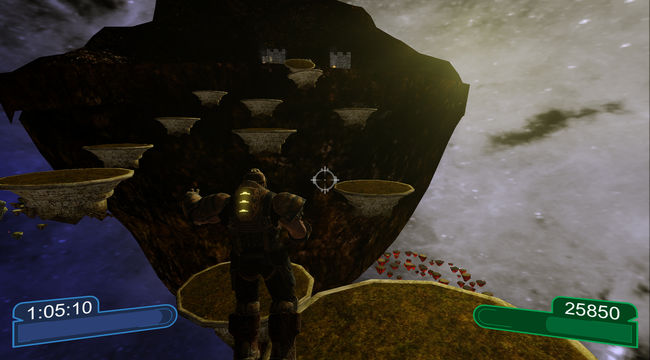
Magnedude was a game made at the Global Game Jam 2011. It is a physics puzzler based on magnets. I was lead programmer in a group of 10 artists and 2 programmers.
Windows Download
Mac OSX Download
Web Player Link